
This Student Guide has been prepared to help you get started before the beginning of your studies. Here you will find essential information about the University's online systems, technical requirements and useful contacts.
University Account (Neptun)
The University of Pécs (UP) uses ‘Neptun’ as the main educational system.
Your Neptun account helps you activate your semester, check your schedule, apply for the exams, etc.
Basically, your Neptun ID(=university ID) and password are your main user account for your studies at our University.
The login data will be sent directly to your application email address, and after registration/enrollment, you can use this Neptun account to access any online platform at UP.
Here you can read more about the basics of this system:
https://neptun.pte.hu/en/neptun/segedletek/elso-lepesek
Microsoft 365
All active students at the University of Pécs have automatic access to Microsoft Office 365.
In addition, 1TB of OneDrive cloud storage is available.
In the event of termination of the student status, access may be cancelled without prior notice, so it is advisable to make a backup of the files stored online before completing your studies.
You can access your UP Microsoft account with your Neptun ID and Neptun password, provided by our Registrar’s Office.
After visiting https://login.microsoftonline.com, you can also activate this account and use the above-mentioned features.
Type in the username 'NEPTUNCODE@tr.pte.hu' and your password used in Neptun to log in.
Moodle
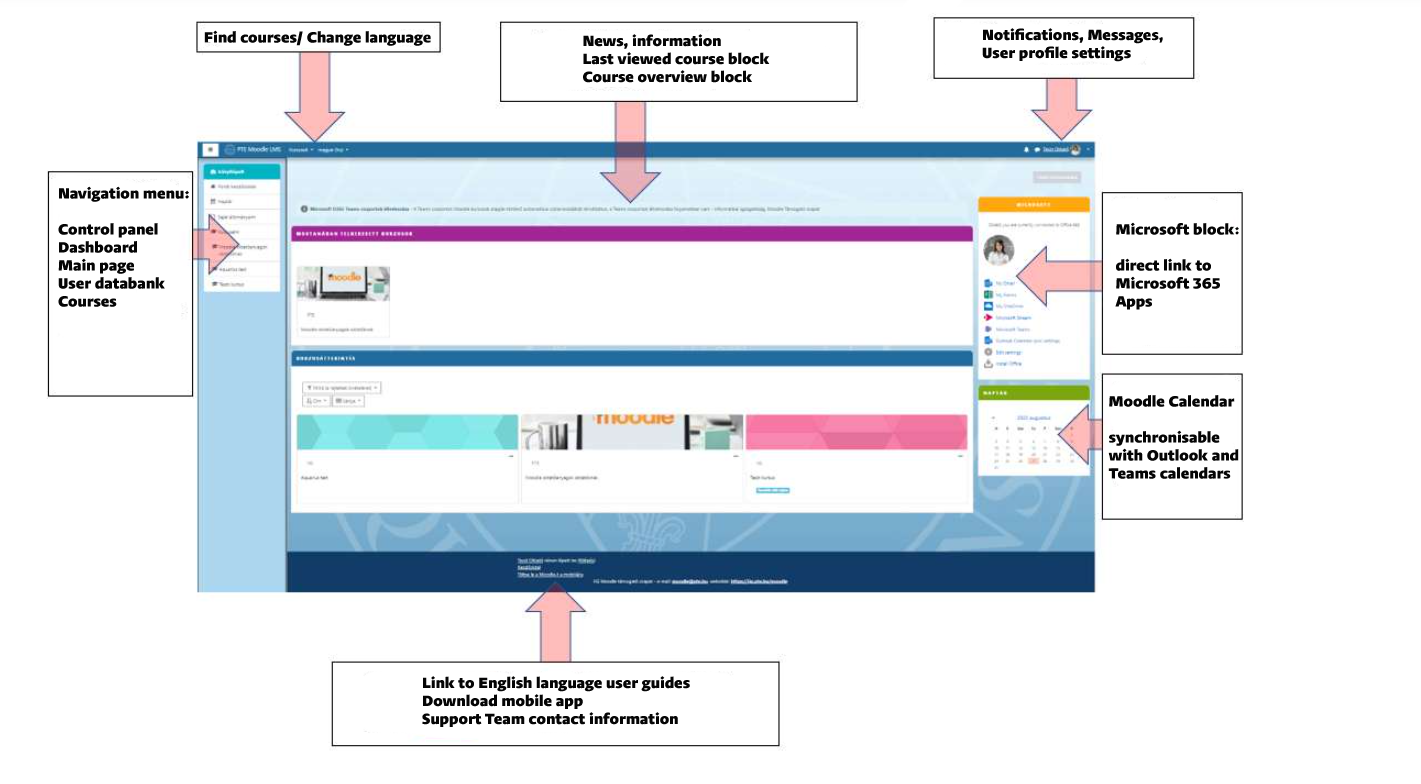
Moodle is the platform where you can access your courses, pre-recorded lectures, etc.
You can log in with your Neptun credentials here:
https://moodle.pte.hu/login/index.php
Technical Requirements
Recommended Devices
For the best learning experience and full access to all course features, we strongly recommend using a desktop or laptop computer.
The Moodle platform and course materials have been optimised for larger screens. Although the system can be accessed from mobile devices, some functions and learning materials may not work properly, resulting in a limited user experience.
Recommended Web Browsers
For the best performance of the Moodle learning platform, please use the latest version of one of the following web browsers:
- Google Chrome
- Microsoft Edge
- Mozilla Firefox
- Apple Safari
- Other Chromium-based browsers (e.g. Brave)
Keeping your browser up to date helps ensure compatibility and security.
Internet Connection and Backup Access
If you are using a work computer or accessing the internet through an institutional network, local firewall settings or administrator restrictions may prevent access to Moodle or Microsoft Teams, or may reduce the bandwidth required for video calls.
To avoid technical problems during examinations or other important assessments, we strongly recommend having:
- your own computer;
- an independent backup internet connection (for example, your smartphone's mobile hotspot).
Multi-Factor Authentication (MFA)
For security reasons, access to your University Microsoft account (including Microsoft Teams and Microsoft 365) requires Multi-Factor Authentication (MFA).
To complete the authentication process, you will need a smartphone.
We strongly recommend installing and configuring the Microsoft Authenticator application before the semester begins.
Please make sure that your authentication device is available whenever you join online consultations or exams.
Moodle Browser Settings
General Settings
For Moodle and its embedded video materials to function correctly, your browser must be configured appropriately.
Please note the following recommendations:
- Do not use ad blockers while accessing the University Moodle platform.
- Some antivirus software may block Moodle content. If necessary, add moodle.pte.hu to the list of trusted websites.
- Third-party cookies must be enabled to allow embedded videos to play correctly.
Mobile Devices
Although Moodle may suggest installing the official Moodle mobile application, we strongly recommend against using it.
Embedded course videos are not fully supported within the Moodle mobile app.
If you access Moodle from a smartphone or tablet, please use your device's web browser (such as Chrome or Safari) instead.
Enabling Third-Party Cookies
- Apple Safari
- macOS
Open: Safari → Settings → Privacy
Disable: Prevent Cross-Site Tracking - iPhone / iPad
Open: Settings → Safari
Disable: Prevent Cross-Site Tracking
- macOS
- Brave Browser
- Quick Method
Click the Shield icon next to the address bar and select:
Allow all cookies - Manual Method
Go to: Settings → Privacy and Security → Third-party cookies → Sites allowed to use third-party cookies
Add the following website to the list of allowed sites: moodle.pte.hu
- Quick Method
Online Consultations and Examinations (Microsoft Teams)
Live consultations and online examinations are conducted via Microsoft Teams.
To participate successfully, you will need:
- a stable broadband internet connection (minimum recommended speed: 5 Mbps upload/download);
- a working webcam;
- a microphone;
- speakers or headphones.
To reduce background noise and prevent audio feedback, headphones or a headset are strongly recommended.
Timetable & Academic Calendar
The timetable is usually finalised by the end of August and sent to all enrolled students before the start of the semester.
Live online consultations are generally scheduled on Thursday and Friday afternoons (Central European Time – CET/CEST).
Contact Information & Technical Help
Should you have any issues or questions during your Neptun registration or Moodle, you can contact the service desks via email here:
Central Service Desk (password management, two-step verification)
sd@pte.hu
Moodle Service Desk
moodle@pte.hu
Registrar’s Office
Ms Rita STOCKER
Academic Registrar
stocker.rita@ajk.pte.hu


